


PRO TIP
Test your setup and make sure your network is solid before you start streaming.
Whether you’re teaching, gaming, or just hanging out, YouTube Live is your chance to be discovered and connect with your people in real time.

Link to Youtube Video (visible only when JS is disabled)
Q2 2025 · Logged-in viewers
Connect in real time
Go live and hang out with your community in real time, building connections that last.
Stream to endless possibility
Spin your best live stream moments into longform videos, Shorts, and live archives, and let your content keep working for you.
Choose how you earn
From ad revenue to Super Chat, gifts*, Shopping, and channel memberships, choose how your live streams earn. Learn more.
*Select markets only.
Gaming, performing, hosting—or just vibing? Whatever you’re into, YouTube Live makes it easy to share the moment and connect with your people in real time.
First time streaming? Welcome to the club! 🎉
You can live stream using a desktop or mobile encoder, hardware encoder, webcam, or from within the YouTube mobile apps.
There are lots of ways for fans to catch you in the moment:
Explore tools like Live chat, polls, and Q&A to encourage interaction and keep your viewers engaged.
Build traditions, inside jokes, or rituals into your streams so viewers feel like they’re part of something special.
Moderate your live chat to keep things positive, safe, and fun. Or, assign moderators so you can focus on streaming while they keep the chat friendly and on-topic.

Link to Youtube Video (visible only when JS is disabled)
First time streaming? Welcome to the club! 🎉
You can live stream using a desktop or mobile encoder, hardware encoder, webcam, or from within the YouTube mobile apps.
There are lots of ways for fans to catch you in the moment:
Explore tools like Live chat, polls, and Q&A to encourage interaction and keep your viewers engaged.
Build traditions, inside jokes, or rituals into your streams so viewers feel like they’re part of something special.
Moderate your live chat to keep things positive, safe, and fun. Or, assign moderators so you can focus on streaming while they keep the chat friendly and on-topic.
Link to Youtube Video (visible only when JS is disabled)
Easily bring your creative vision to life with YouTube’s latest tools.


FEATURED
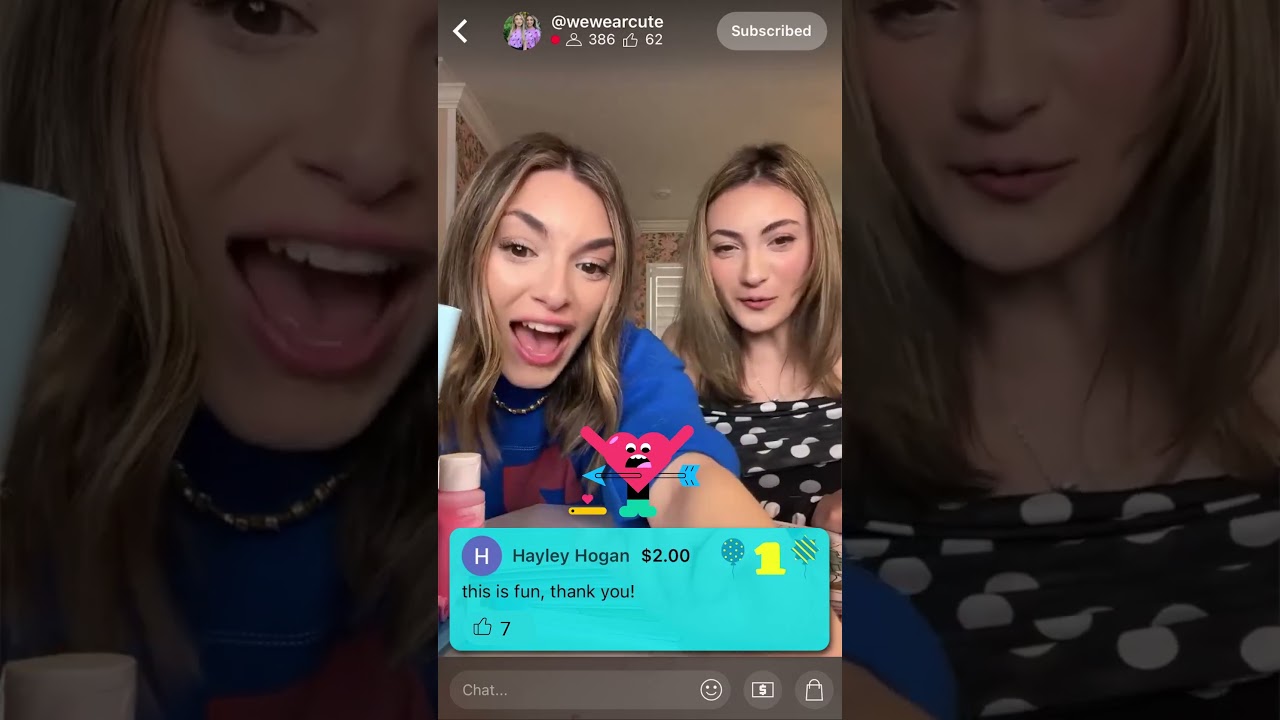
Once you’re in the YouTube Partner Program, you get to pick how you monetize your live streams—ads, channel memberships, Shopping, and more. And with gifts, Super Chat, and Super Stickers, fans can support you while interacting in real time.





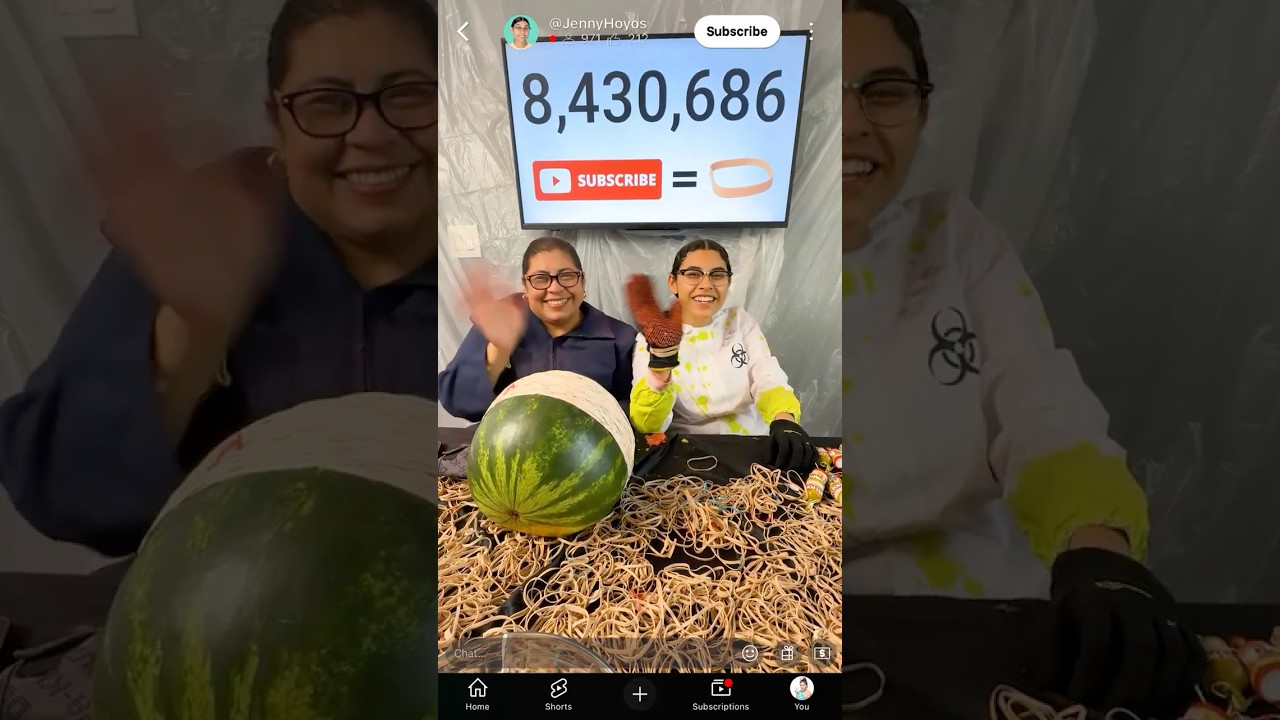

There are multiple methods of streaming: mobile, webcam, encoders, and consoles. Choose the one that's best for what you're streaming.
Mobile
Good for vlogging and quick updates from your phone or tablet. To create a mobile live stream, you need to meet the requirements.
Webcam
Quickly live stream from your computer using a webcam. You’ll need a computer with a webcam.
Learn how to stream with a webcam
Encoders
Encoders let you stream gameplay, overlays, and use hardware like preamps, mics, and cameras. This type of stream is commonly used for gaming, sporting events, concerts, and conferences.
Learn how to stream using an encoder
Game consoles
Modern game consoles from PlayStation and Xbox allow you to directly stream from the device. Please review each console maker’s instruction manual for directions to stream.
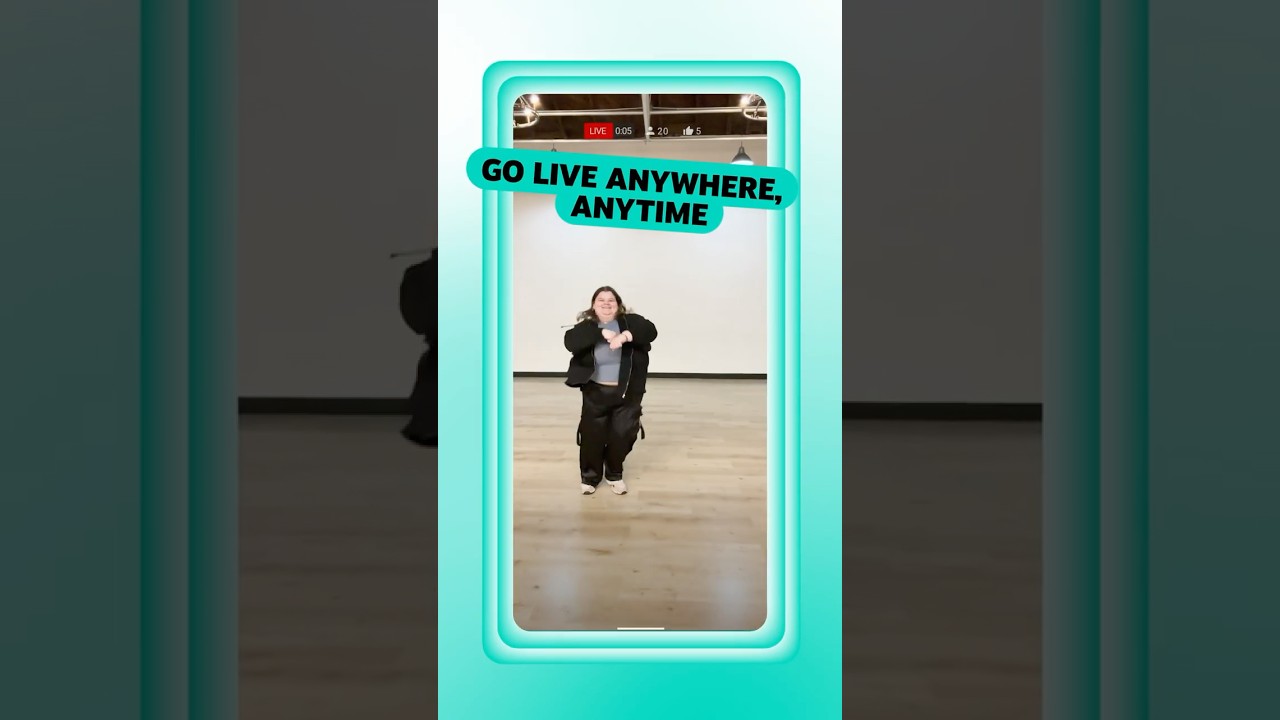
Vertical live streams
When your live stream is vertical (more tall than wide), viewers on mobile will now enter a full screen viewing experience when watching it. This experience includes a scrollable live stream feed where viewers have access to fan funding features like Super Chat, Super Stickers, channel memberships, and gifts, depending on eligibility. Viewers (not limited to existing channel subscribers) can also find these live streams when browsing YouTube Shorts.
Stream in both horizontal and vertical formats
You can go live in both horizontal (16:9 aspect ratio) and vertical (9:16 aspect ratio) formats at the same time. This setting gives your audience more ways to view your content, whether they’re watching on a computer or in the Shorts feed on the YouTube mobile app.
To live stream, you need to have no live streaming restrictions in the past 90 days and you need to verify your channel.
Note: You must be at least 16 years old to live stream. Live streams that do not follow the minimum age requirement will be taken down and the account may temporarily lose its ability to live stream. Additionally, live streams featuring 13-15 year olds who are not visibly accompanied by an adult may have their live chat disabled and the account may temporarily lose access to live chat or other features.
You can earn revenue on your live streams by:
Ads on live streams
If your channel is monetized and monetization is turned on for your live stream, YouTube will trigger ads to serve on your content. Ad serving is not guaranteed and some viewers may not get an ad. Live streams can be eligible for:
Side-by-side ads are a type of mid-roll that may be shown to viewers when the following stream criteria is met:


