

Love it. Tag it.
Earn more.
Grow your income by recommending products you already love, from your own store or other brands. Get started with YouTube Shopping in Studio.

Link to Youtube Video (visible only when JS is disabled)
Make money your
way with YouTube
Shopping
With YouTube Shopping, fans can shop products right from your content. Connect your store to feature your own products, or tag products from other brands.

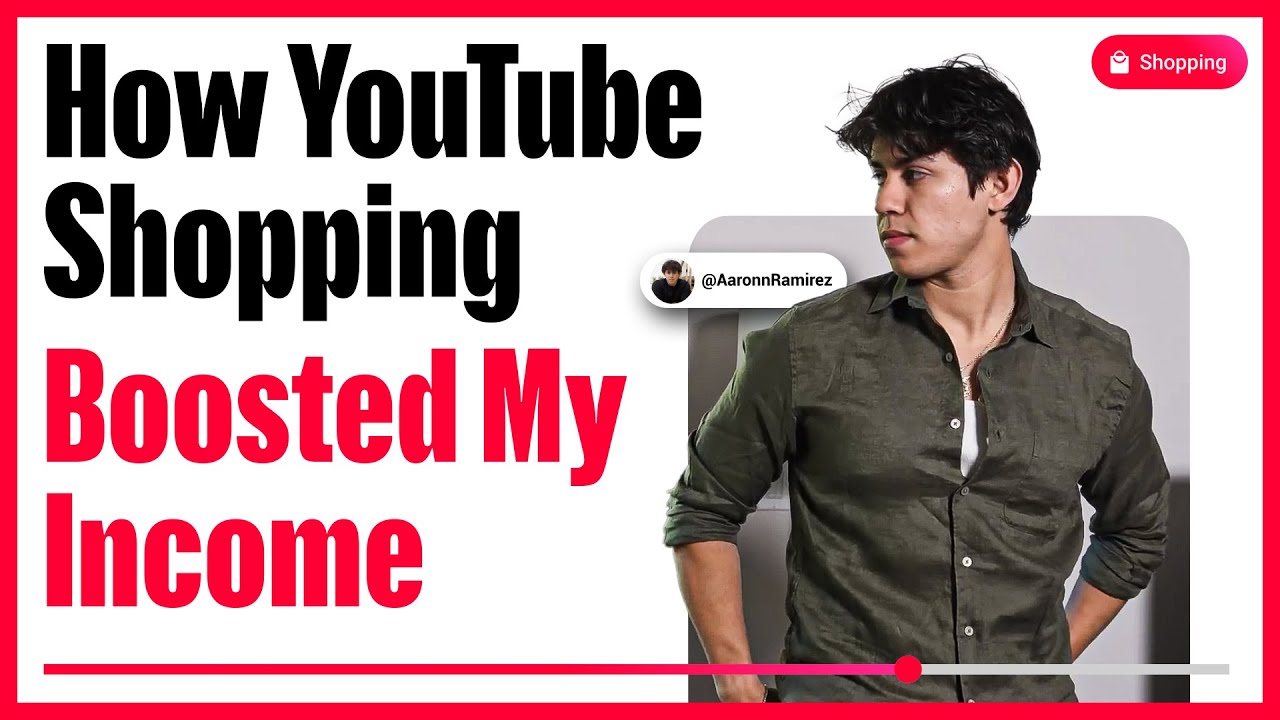
Income boosted
35-50%
Aaron grows his business with product tagging and affiliate commissions.
*Results not typical. Earnings depend on audience size, engagement, and content type.
-
Earn income
Let fans shop your product
recommendations. When they buy,
you earn commissions. -
Grow your audience
Boost discoverability of your content
to reach new viewers. -
Deepen trust
Help your fans discover products they love with a seamless shopping experience.


Here’s how it works
-
Check eligibility
See if you're eligible for YouTube Shopping on the Earn tab in Studio.
-
Add product tags
Learn how to use YouTube Shopping product tagging on your videos, Shorts, and livestreams.
-
Maximize your earnings
Tips to get the most from YouTube Shopping.
Creator success on YouTube










Ready to get started with YouTube Shopping?
-
1
Join in YouTube StudioHow to join YouTube Shopping: If eligible, sign up for Shopping tools in the Earn tab of Studio and link your store.
-
2
Tag productsYou can tag products at upload, or edit existing videos to tag relevant products.
-
3
Get paidTrack clicks, sales, and revenue in Analytics.
Join the YouTube Partner Program yet?
If you haven’t already, become a YouTube Partner to unlock monetization, personalized channel support, and exclusive tools to help you level up.

Frequently asked questions
The program is open to established creators in the YouTube Partner Program who meet key channel milestones. Eligibility also depends on your channel type and location.
Getting started is simple. Once you qualify, you'll find an invitation in the Earn section of YouTube Studio. From there, it's a quick process to turn on the feature and start tagging products right away.
Turn your trusted recommendations into real revenue. Tag the products you love and earn a commission not just on those items, but on the entire basket of qualifying purchases you drive—all while making it easier for your audience to shop your style.
Eligible creators can tag products in their content in Studio —appearing as a "Shopping button" on long videos or a "Shopping Product Sticker" on Shorts.
How to Tag Products: During or after uploading a video or Short (on the "Details" page):
- Go to the video description and click Products.
- Click (+) and use the search box, and you can search by product name, product url, or filter by seller, to find the product you want to tag.
- Select the product and drag it to the indicated area in the tool (you can tag up to 60 products).
For Shorts, the list can be rearranged to choose the product for the Shopping Product Sticker. The sticker's size and placement can be adjusted directly in the YouTube mobile app while tagging, or adjusted post-upload. Viewers can see a list of tagged items and click through to the retailer.
To enable automatic product tagging, follow these steps in YouTube Studio:
- Navigate to Settings.
- Select Channel.
- Go to the Advanced settings tab.
- Under Automatic product tagging, check the box for Tag products automatically.
Auto-tagging automatically identifies products in your videos and tags them on your behalf, saving you time and allowing you to earn commission for purchases.
Give your fans a seamless shopping experience as viewers can browse product details and head to checkout, all while your video keeps playing. It's helpful for them and effective for you.
If you encounter any errors while getting set up, we have resources to help you resolve common issues. You can always refer to our help center for the latest troubleshooting tips and guidance.
The program is currently available to creators in select regions and we're always looking to expand. If you're interested in joining, you can see the current list of countries and express your interest for future consideration.
Everything you need is built right into YouTube Studio. Forget juggling spreadsheets and external link managers. Our in-studio integrated tools let you handle everything from product tagging to performance tracking in one place, freeing you up to do what you do best: create. Links in the description are difficult to find for viewers, they contain no imagery or details, can break and become out of date, and there are no links in descriptions on YouTube Shorts.
Yes, transparency with your audience is key. You must continue to follow YouTube’s paid product placement policies and use our disclosure tools to inform viewers of any paid product placement, endorsement or other commercial relationship.
On top of standard commissions, the program may feature special incentives and performance bonuses. These opportunities allow top-performing creators to unlock additional earnings and maximize their revenue potential.
Discover your next brand partnership right inside YouTube Studio. Our dedicated Affiliate Hub features a growing marketplace of sellers where you can browse partners, see commission offers, and get access to special promotions and product samples. There are thousands of sellers across categories that offer commission rates!. And this list is growing every day!
Yes! You can use the Trending Products card in the YouTube Studio mobile app empowering you to discover items that resonate with your viewers and unlock new revenue streams. This feature surfaces the most-clicked products across YouTube within your top categories—like skincare, tech, or fitness—over the last 28 days.
To help your viewers shop the products tagged in your long-form videos at the right time, add timestamps to your tagged products. Customize the timestamp duration; drag and drop your tag on the video timeline.
Please review the tagging guidelines to ensure your tags are compliant and check the troubleshooting product tags guidance to see why your tag may have been removed. If you still believe your tag has been removed in error, you can have it reviewed by contacting Creator Support here.


